
Modules
Users
The Users page lists your app's users with a Log in as button. Handy for problems only some users have, for example because of their role or data.
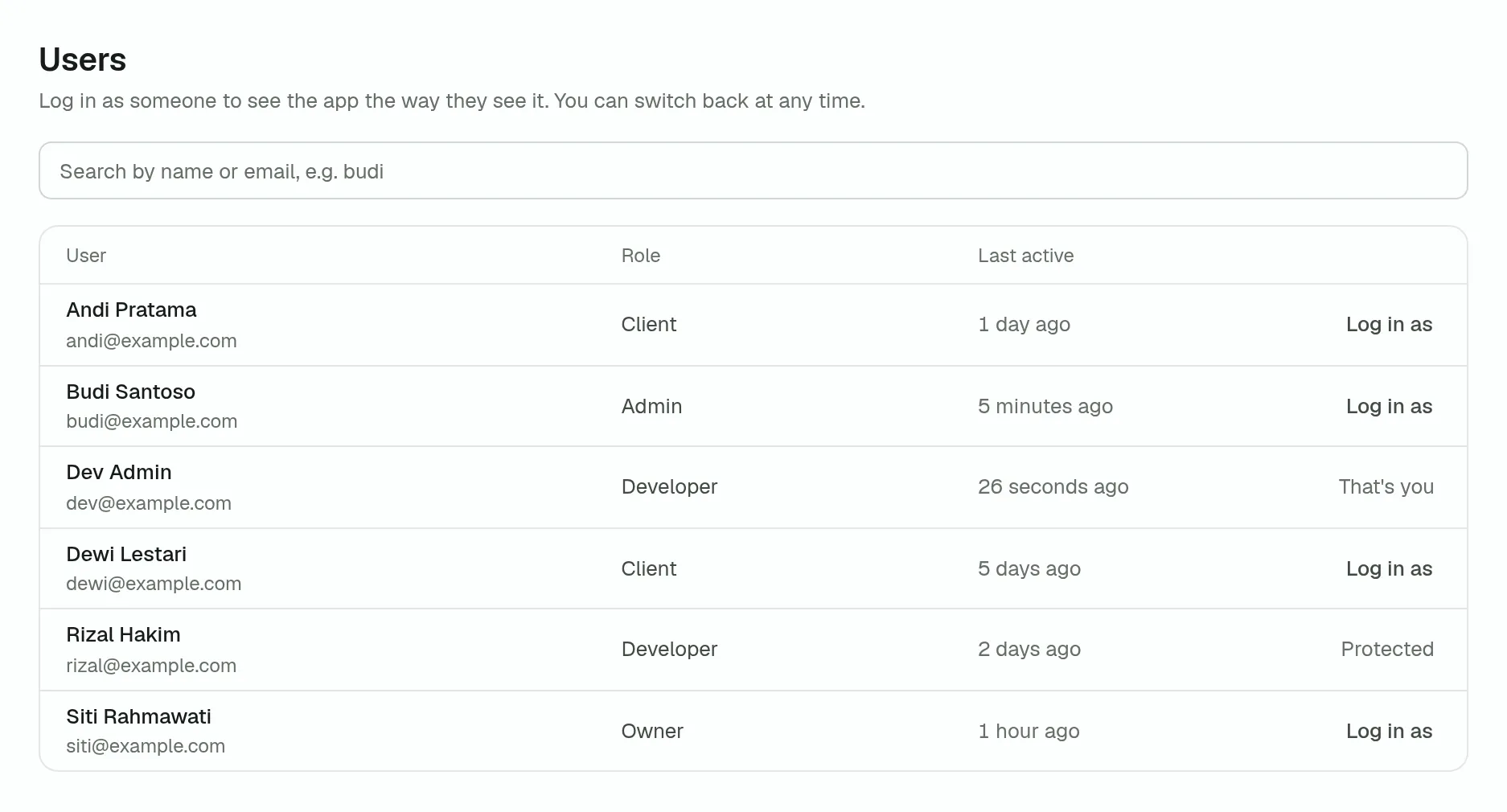
What it shows
- One row per user: name, email, role if you set it up, and when they were last active if
users.columns.last_activeis set. 25 per page. - A search box, which searches the
users.searchcolumns. - Recent sessions: the last 10 impersonations, who logged in as whom and for how long.
Users you can't log in as show no button: "That's you" for your own account, and "Protected" for users the beImpersonated gate refuses.
Log in as
Press Log in as on a user. You are signed in as that user and sent to impersonation.redirect (the default is /).
While impersonating, the app shows a bar at the top of the page: "You're signed in as …" with a button to go back. The bar is added to every HTML page on its own, Inertia apps included. Press its button to go back to your own account.
use Soara\Debugger\Debugger;

$current = Debugger::impersonation();
// ['id' => ..., 'name' => 'Dev Admin', 'target' => 'Budi', 'started_at' => ...] or null
Showing roles and choosing users
Roles and which users are listed are set in code, so the config stays cacheable:
use Soara\Debugger\Debugger;

public function boot(): void
{
    // Show a role in the Role column.
    Debugger::userRole(fn ($user) => $user->getRoleNames()->first());

    // Only list active users.
    Debugger::userQuery(fn ($query) => $query->where('is_active', true));
}
Related config
users.guard,users.model,users.columns,users.search. See Configuration.impersonation.enabled,impersonation.redirect,impersonation.show_bar.- The
impersonateandbeImpersonatedgates. See Access control.
Read-only mode
Log in as is turned off. The user list stays visible. Going back to your own account still works, so nobody gets stuck in someone else's account.
Limits
- Impersonation can't be nested. Go back to your own account before logging in as another user.
- If your original account is deleted while impersonating, the back button logs you out.